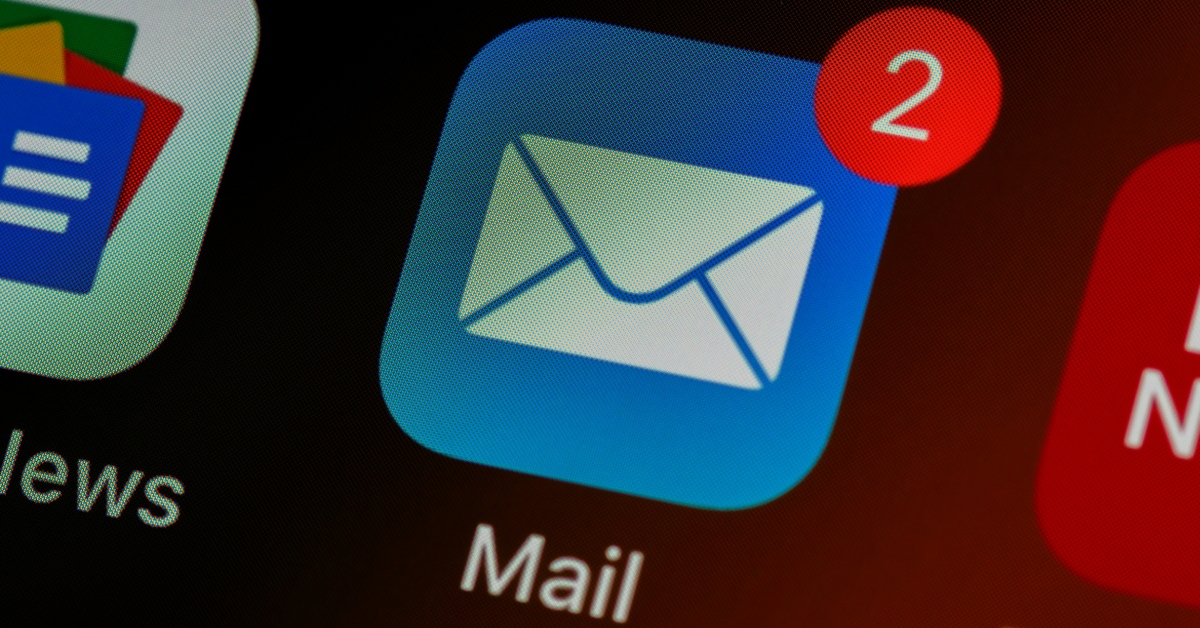
That was the subject line of a recent message from one of our valued investors.
They were concerned they hadn’t seen their monthly Statement of Returns since January 2026.
Naturally, we took it seriously.
We immediately began a trace. Logging into our email systems, we reviewed our delivery logs and thankfully, our platform keeps a detailed record of every message sent, including delivery status and even when emails are opened.
The result?
Every single statement had been successfully delivered even opened.
So what happened?
👉 The emails were there… but somehow got lost in the clutter.
This Happens More Than You Think
Modern inboxes are busy places with promotions, updates, alerts, newsletters, it’s easy for important emails to get buried or overlooked.
And when it comes to something as important as your investment records, that’s not ideal.
Thankfully, there’s a simple fix.
Simply Create a Dedicated 5KGE Folder
To help you stay organized and never miss an update, we recommend setting up a dedicated folder (or label) for all your 5KGE emails.
This way:
- All your statements are automatically stored in one place
- You can easily track your investment performance over time
- Nothing gets lost in the noise
Let’s walk you through how to set this up 👇
For Gmail Users
On Web (Desktop)
- Open Gmail
- On the left sidebar, scroll down and click “More” → “Create new label”
- Name it something like “5KGE” or “5KGE Statements” and click Create
Now set up the filter:
- In the right corner of the search bar, click the filter icon (similar to this ☰)
- In the “From” field, enter your 5KGE sender domain (which is
@5kge.com) - Click “Create filter”
- Check the following boxes:
- ✅ “Apply the label” → select 5KGE Statements
- ✅ “Never send to Spam”
- Click Create filter
Done 🎉
On Mobile (Gmail App)
While filters are best created on desktop, you can still manage labels:
- Open the Gmail app
- Tap the menu (☰)
- Scroll to Labels
- Tap your 5KGE Statements label to view all emails in one place
👉 Tip: After creating the filter on desktop, everything will sync automatically to mobile.
For Yahoo Mail Users
On Web (Desktop)
- Open Yahoo Mail
- In the sidebar, click “Folders” → “New Folder”
- Name it “5KGE” or “5KGE Statements”
Now create the filter:
- Click Settings (⚙️) → More Settings
- Go to Filters → click “Add new filters”
- Name your filter (e.g. 5KGE Emails)
- Set the rule:
- “From” → contains →
@5kge.com
- “From” → contains →
- Choose destination folder: 5KGE Statements
- Click Save
On Mobile (Yahoo Mail App)
- Open the Yahoo Mail app
- Tap the menu (☰)
- Tap Folders → Create new folder
- Name it 5KGE or 5KGE Statements
👉 Note: Filters may need to be set up on desktop for full functionality.
💡 Pro Tip
You can also:
- ⭐ Star important emails
- 📌 Mark them as “Important”
- 🔍 Search “5KGE” anytime to quickly locate past statements
🤝 We’re Here to Help
Your peace of mind matters to us.
If you ever feel like you’ve missed an update or need help setting this up, please don’t hesitate to reach out. We’ll gladly guide you step-by-step.
Stay informed. Stay organized. Stay confident.
At 5KGE, transparency isn’t just a promise it’s a system.